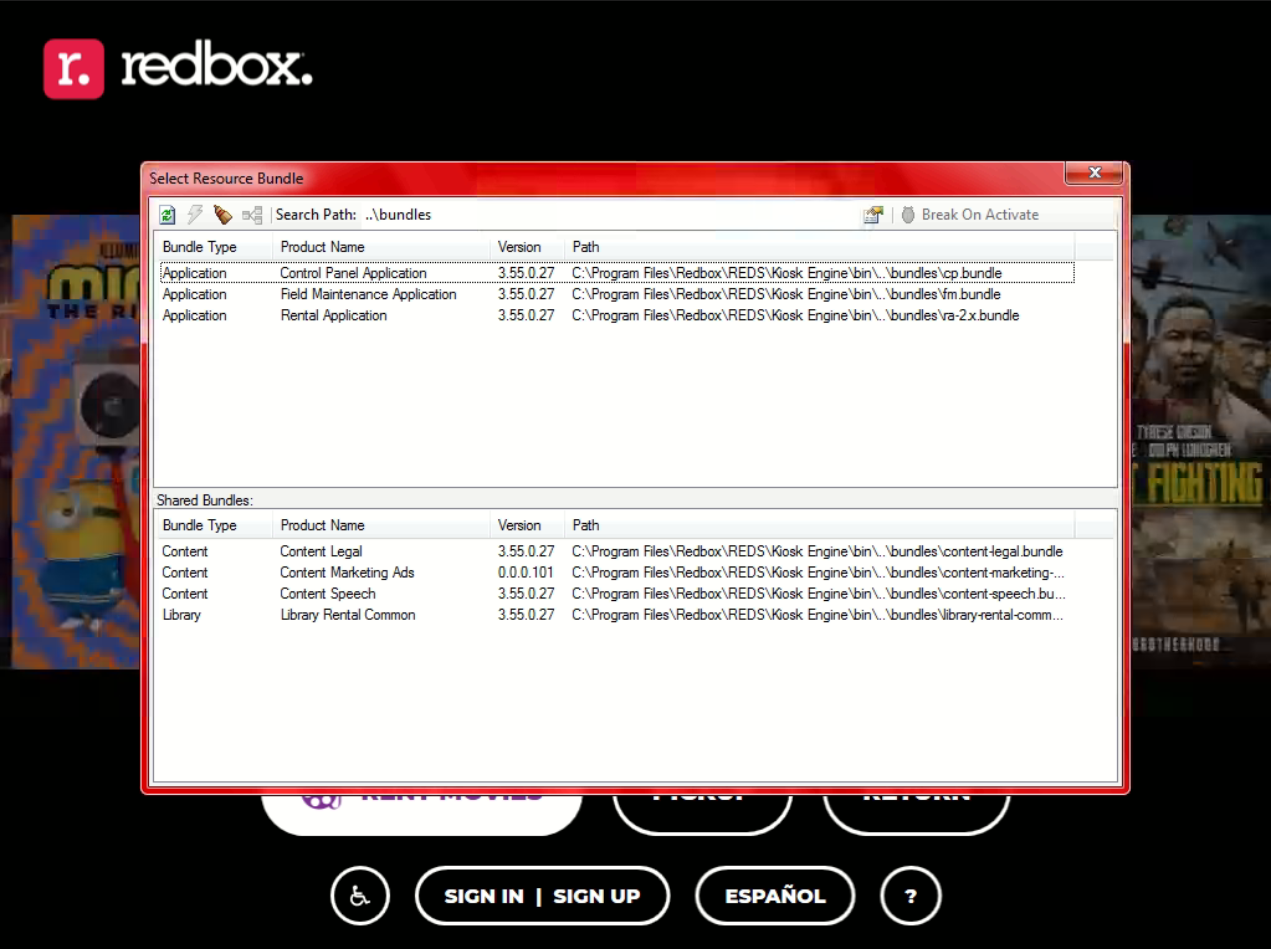
Kiosk Engine is the custom application designed by Redbox for use on the kiosks by both employees and customers. By default, Kiosk Engine boots into a rental menu after the device initializes.
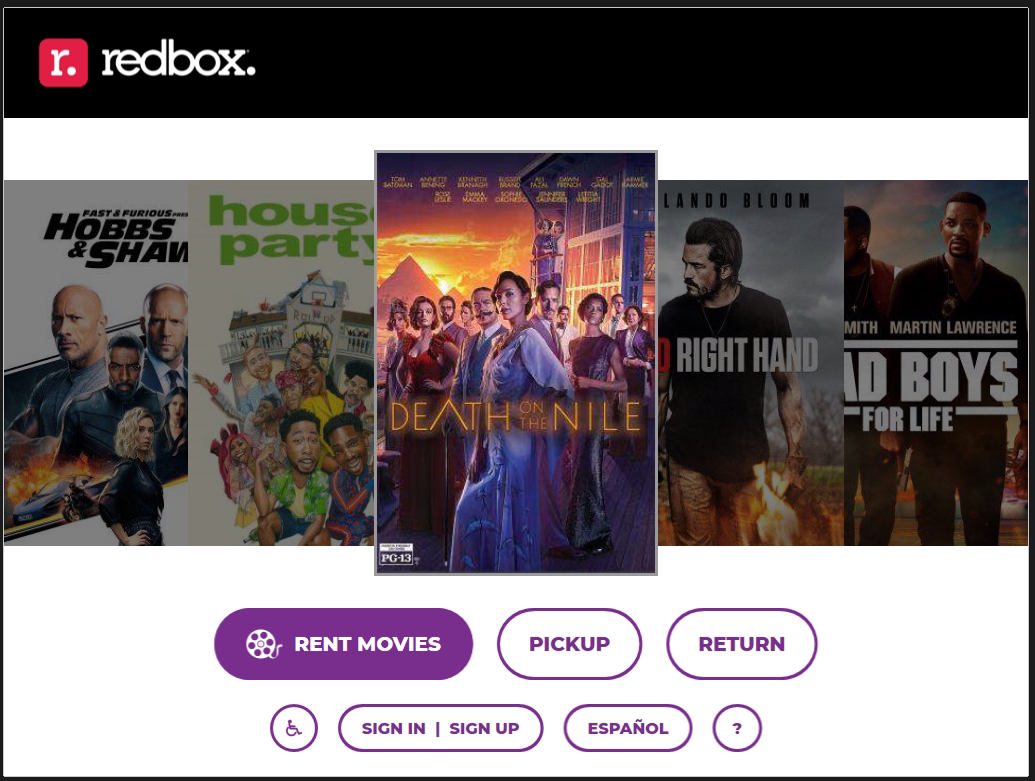
The rental menu features both a day and night mode. During the day, the rental screen will use white backgrounds to enhance contrast in sunlight. In evening hours, the menu will use black backgrounds to avoid eye strain from bright display panels.
OfflineMode
This rental menu allows users to rent, buy, return, or pickup reserved movies. When the device is in OfflineMode, the kiosk will allow users to only rent 3 movies at a time. Some movies may be restricted from rental or purchase while in OfflineMode, though the reason for this is not fully understood. The card used to complete transactions in OfflineMode can be used multiple times as the kiosk does not make any attempt to limit this.
All kiosks are in OfflineMode as Redbox's services no longer exist.
Since the Redbox API URL isn't hard coded, changing it to another domain name can possibly get it out of OfflineMode and move the rental limit from 3 back to 5 again.
If you wish to change the OfflineMode rental limit, change the value of “OfflineItemsLimit” in Redbox\REDS\Kiosk Engine\data\system.config to whatever you like and reboot.
Kiosk Credentials
BIOS: Possibly r3db0x1 though unconfirmed if it was the same on all Redbox kiosks
RBUser:
Username: Rbuser
Password: US#1Choice4movierentals
Admin:
Username: rbadmin
Password: WiAMsocap?
(There are instances where it was changed on some kiosks, but it can be edited, but the account is not used for the redbox application as it will login to Rbuser by default.)
Accessing Service Menus
It's possible to access multiple service menus via Kiosk Engine.
Field Maintenance via Rental Menu
On the homepage, press the ? or Help button. Once on the help page, tap/click the Redbox logo. “Please Wait” will appear briefly before being replaced with a login screen.
Without patching DLLs or emulating the authentication servers, you cannot go any further past this point. If authentication does succeed, you will enter the Field Maintenance Application.
Redbox Desktop via Keyboard
From anywhere (assuming the application is responding and the kiosk is initialized), you can use the key combo CTRL + ALT + ENTER to access a Redbox Control Panel Login panel. Kiosks in OfflineMode allow the use of any credentials to log in.
If the login succeeds, you will be sent to the Redbox Desktop.
“Select Resource Bundle” Menu via Keyboard
There is a way to open a menu that allows selecting “Resource Bundles” without the use of a discrete chain of keyboard combinations or UI interactions. You can access this menu by pressing the ` key on a keyboard.