How to re-enable Task Manager
All kiosks comes with Task Manager disabled, but with RBUser being an administrator account, this can be re-enabled.
- Access Redbox Control Panel
- Select DOS Prompt
- Run command
gpedit.mscand pressENTERto openLocal Group Policy Editor - Navigate to
User Configuration > Administrative Templates > System > Ctrl+Alt+Del Options - Select
Remove Task Managerand set toDisabled(Recommended) orNot Configured - Press
ApplyandOK
Getting a Temporary Normal Desktop Environment
This section only covers a temporary normal desktop environment that will not persist across reboots, if you would like it to persist until you manually change it, follow the instructions in Autobooting to the Normal Windows Desktop Environment.
The following will NOT work on a Windows 7 machine, this will only work on Windows 10 or Windows 11!
To get a normal desktop environment until you power off the PC, open command prompt from the Redbox Desktop and type explorer, the first time this is done will launch the normal desktop environment, any subsequent calls will open a new explorer window.
Autobooting to the Normal Windows Desktop Environment
If you want to prevent the autoboot of Kiosk Engine and would rather boot to a standard Windows desktop environment, you need to edit the Shellregistry key located at HKEY_LOCAL_MACHINE\Software\Microsoft\Windows NT\CurrentVersion\Winlogon
You want to change the value of this key to C:\Windows\explorer.exe
After you change the value, reboot the machine and the normal Windows desktop environment will be displayed.
To switch back to the default kiosk engine autoboot, change the value to C:\Program Files\Redbox\KioskShell\KioskShell.exe
Upgrading from Windows 10 to Windows 11
If you are using the original Windows 7 x86 install from your kiosk, you will need to either (A) clone the Windows 10 IoT Enterprise Image from our Discord Server or (B) do a full store reinstall of the Redbox software. A reinstall is a rather complex process, especially if you're using hardware not originally tested in the kiosks. Upgrading from Windows 7 to 11 will not retain files important and will break your install.
Preparing
When preparing, you will need to grab the Windows 11 IoT Enterprise LTSC ISO from here and download the Windows 11 IoT Enterprise LTSC link. We recommend the 2nd link as its already set to iso. You will need to install the ISO to your Kiosk PC or use a tool like Rufus to extract the ISO to your USB Flash Drive
Running an upgrade
- Open the ISO we downloaded to the Kiosk PC or plug in your USB Flash Drive
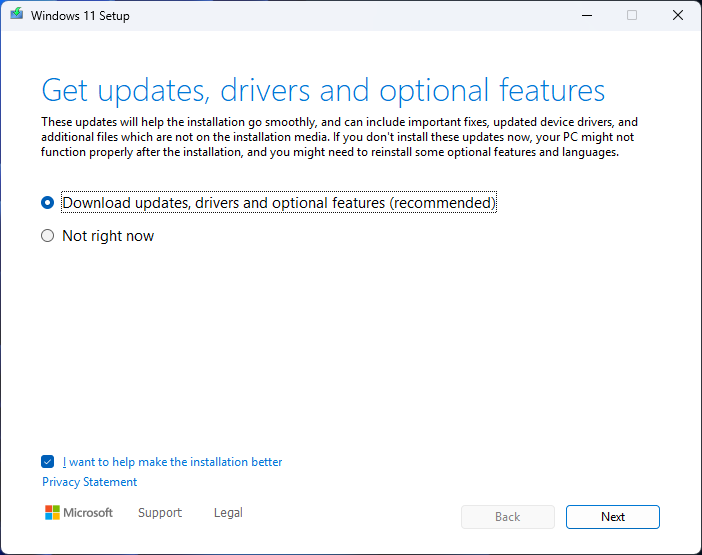
- In the initial setup, you will be asked about Updates. If your kiosk is offline, you will need to set it to Not right now. If your kiosk is connected to the internet, you can download updates, drivers, and optional features.
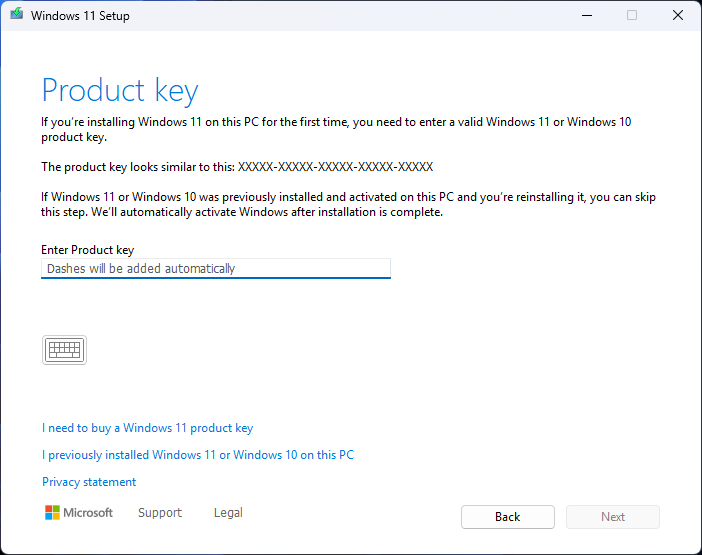
- When prompted for a product key, you should be able to skip this step.
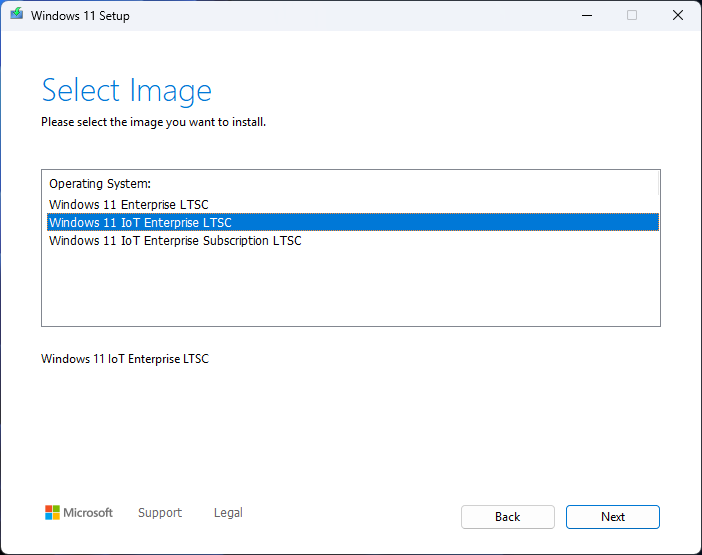
- When asked to select an image, select Windows 11 IoT Enterprise LTSC.
- If you successfully did everything correctly, you should be able to select
Keep personal files and appsbut sometimes this is automatically applied. Once you verified everything, proceed with installation. - Once the kiosk boots into Windows 11, you should activate windows as after 30 days, the kiosk will turn off automatically after 2 hours. You will need an internet connection to complete this. We recommend MAS as obtaining an IoT Enterprise License isn't given out to just anyone.